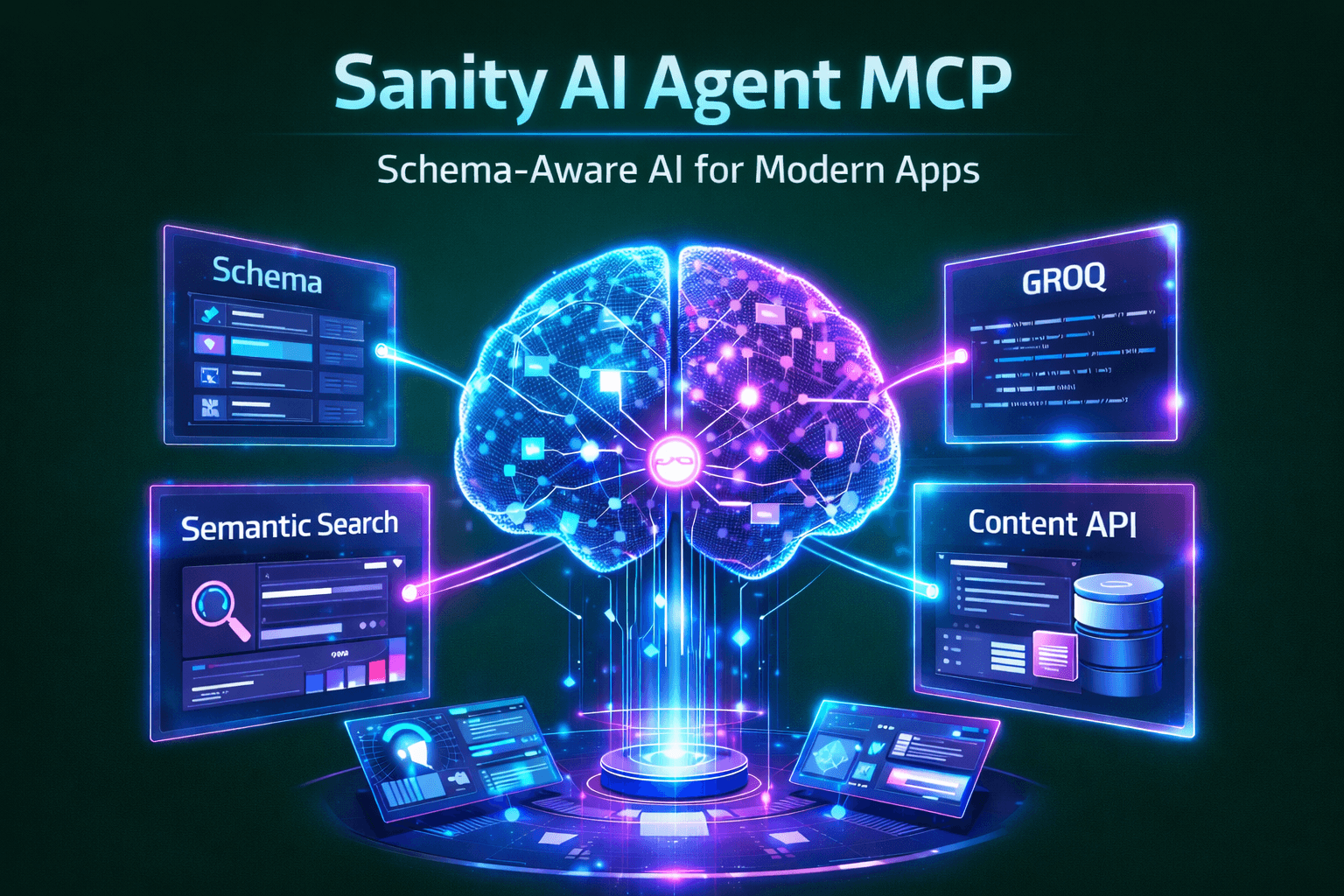
Sanity AI Agent MCP: Powering Intelligent, Context-Aware AI Systems
In This Article
Agent Context is a hosted Model Context Protocol (MCP) server designed specifically for production AI agents. It allows AI agents (like customer support bots, AI search features, or shopping assistants) to securely read and query your Sanity content in a structured, schema-aware way.
- How it differs from Sanity MCP: While the standard Sanity MCP Server gives development tools (like Cursor or Claude Code) full read/write access to your entire workspace, Agent Context provides scoped, read-only access strictly meant for the applications you build for your end-users.
Key Capabilities
- Schema Awareness: The AI agent inherently understands your content types, fields, and document relationships.
- Semantic Search: Agents can utilize semantic search to find relevant content (if embeddings are enabled on your dataset).
- Controlled Access: You can restrict exactly what content the agent is allowed to "see" using a custom GROQ filter.
How it Works
When you connect an MCP client (such as the Vercel AI SDK) to the Agent Context MCP endpoint, it exposes three specific tools to the AI agent:
- initial_context: Gives the agent a compressed overview of your schema (data types, fields, and document counts).
- schema_explorer: Allows the agent to inspect the detailed schema for a specific content type.
- groq_query: Enables the agent to execute real-time GROQ queries against your Sanity dataset to retrieve the exact content it needs to answer user queries.
Setup and Configuration
Future-Proof Your Platform with Scalable AI Architecture
To use Agent Context, you need Sanity Studio v5.1.0+ (as it relies on server-side schemas) and a Sanity API read token.
It is configured directly inside your Sanity Studio using the @sanity/agent-context plugin. This plugin creates a specific "Agent Context" document type where you define:
- Instructions: Custom system prompts for how the agent should handle the content (e.g., "Focus only on technical documentation").
- GROQ Filter: A security boundary to restrict data access (e.g., _type == "product" && public == true).
Step 1: Install Sanity's CLI skills
You can easily scaffold a project with this functionality using Sanity's CLI skills by running:
npx skills add sanity-io/agent-context --all
Step 2: Install the Studio Plugin
You need to install the @sanity/agent-context package as a dependency in your Sanity project.
Run this command in your terminal (C:\sanity-project):
npm install @sanity/agent-context
Step 3: Configure sanity.config.ts
Now, you need to tell Sanity Studio to use the new plugin. Open your sanity.config.ts file.
- Import the plugin at the top of the file.
2. Add it to the plugins array.
Your file should look something like this:
Step 4: Configure Sanity Stucture
Open your sanity/structure.ts file
import the official schema name from the plugin and add it as an item in your list.
Update your file to include these two things:
1. Add this import at the very top:
2. Add the item to your S.list().items([...]) array:
Inside your structure array , add a divider and the Agent Context item. It will look something like this:
Step 5: Run your Studio and Create the Context
Now that the plugin is installed, you can configure what your AI agent is allowed to access.
- Start your Sanity Studio by running:npm run dev
- Open your Studio in the browser (usually http://localhost:3333).
- Look at your left-hand navigation sidebar. You should see a new document type called "Agent Context".
- Click Create new Agent Context.
- Fill out the form:
- Name: e.g., "Main Website Bot"
- Slug: e.g., main-bot
- Instructions: (Optional) Tell the AI how to behave. E.g., "You are a helpful assistant for Murmu Software Infotech. Only recommend our services."
- Content Filter: (Optional) If you only want the bot to read certain documents, you can add a GROQ filter like _type == "post" || _type == "servicePage". Leave it blank if the bot should be able to read everything.
- Hit Publish.
Step 6: Get your MCP Endpoint
Once you publish the Agent Context document, look at the top of that document in the Studio. It will give you a special MCP URL that looks like this: https://api.sanity.io/v2024-01-01/agent-context/your-project-id/production/main-bot
Save that URL! You will use it, along with a Sanity Read Token, to connect your Next.js AI chatbot directly to your Sanity content.
Frequently Asked Questions
What is Sanity AI Agent MCP: Powering Intelligent, Context-Aware AI Systems?
Learn how to build production-ready AI agents using Sanity AI Agent MCP server. Enable secure, schema-aware content access, semantic search, and GROQ-powered queries for Next.js apps, chatbots, and enterprise AI solutions.