The Complete Guide to Real-Time Visual Editing: Sanity Presentation & Next.js App Router
In This Article
- Step 0: The Architecture & Security Tokens
- Step 1: Configuring the Sanity Studio
- Step 2: Building the Next.js Draft APIs
- Step 3: The Data Fetching Engine (defineLive)
- Step 4: Global Frontend Injection (layout.tsx)
- Step 5: Server-Side Data Fetching
- Step 6: Handling Stega in Client Components (The Final Polish)
The biggest trade-off of adopting a headless CMS has historically been the loss of visual context. Content editors are often forced to fill out abstract forms in a dashboard, hit "publish," and hope their changes look right on the live website.
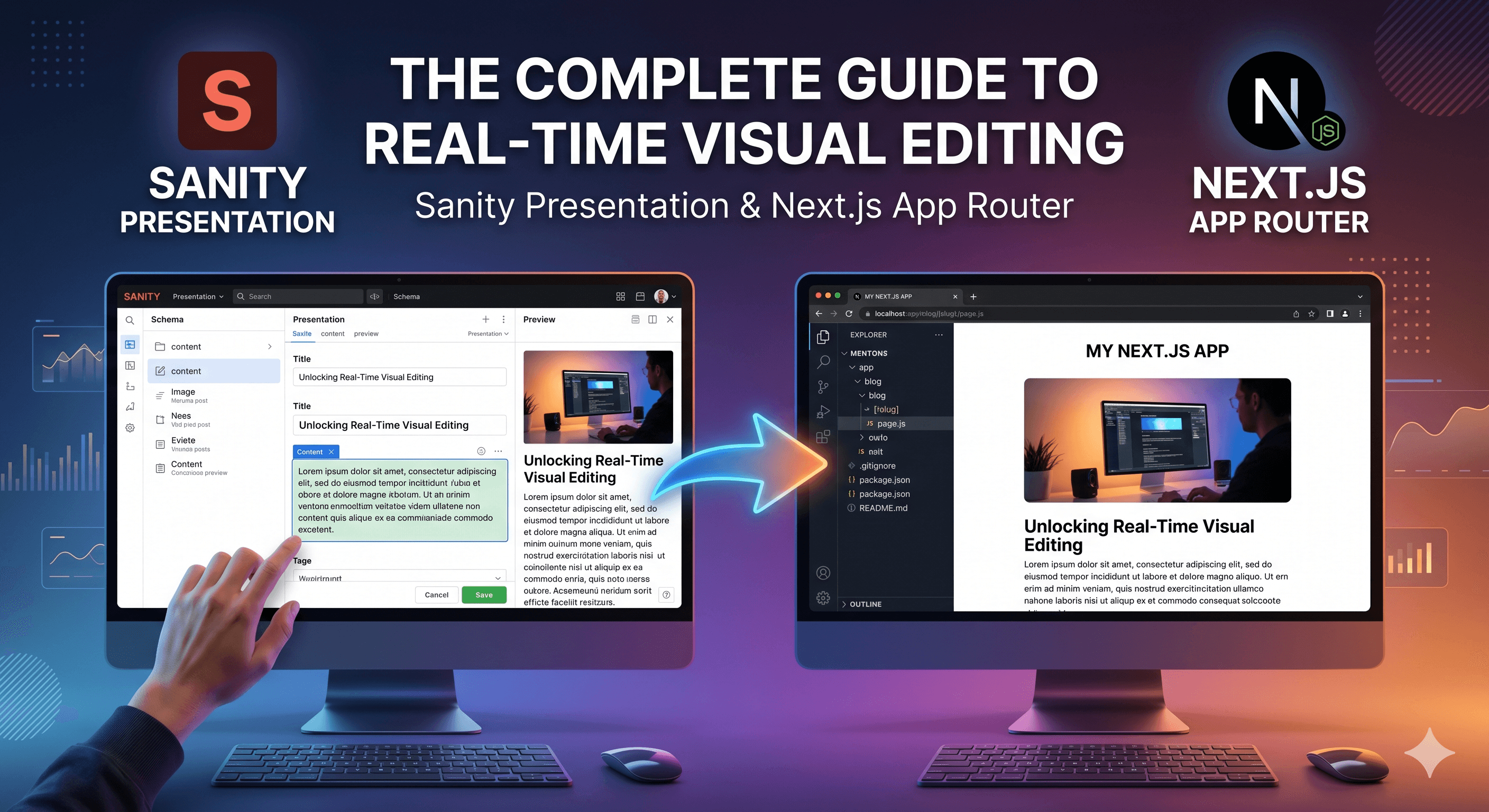
By combining Sanity's Presentation Tool with the Next.js App Router and the modern next-sanity/live package, we can eliminate this gap entirely. We can build a seamless, side-by-side visual editing experience where editors click directly on a live website preview to edit text, and watch their keystrokes stream to the screen in real-time—all while keeping the CMS and frontend codebases strictly decoupled.
Here is the step-by-step blueprint to build this architecture from absolute scratch.
Step 0: The Architecture & Security Tokens
Because your Sanity Studio and your Next.js frontend are decoupled (often running on different ports locally or different domains in production), they require secure keys to communicate.
Before writing any code, set up these three tokens in your .env.local files:
- SANITY_PREVIEW_SECRET (Shared): A random string password. The Studio sends this to Next.js to prove it is authorized to turn on Draft Mode.
- SANITY_API_READ_TOKEN (Next.js Only): A private server-side token. Next.js uses this to bypass its cache and fetch unpublished, private drafts directly from the Sanity database.
- NEXT_PUBLIC_SANITY_BROWSER_TOKEN (Next.js Only): A public "Viewer-role" token. The browser uses this inside the Studio iframe to open a real-time Server-Sent Events (SSE) connection, listening for live keystrokes.
Step 1: Configuring the Sanity Studio
Faster Content = Faster Growth
In your Sanity Studio repository, you need to install the Presentation plugin and point it toward your Next.js frontend.
First, install the package:
npm install @sanity/presentationNext, register it in your sanity.config.ts. You will configure the previewUrl to securely hit the Next.js API route we are about to build, and use a resolve block to tell Sanity exactly which URLs to open for specific document types.
// sanity-project/sanity.config.ts

import { defineConfig } from "sanity";

import { deskTool } from "sanity/desk";

import { presentationTool } from "@sanity/presentation";

export default defineConfig({
  // ... core config ...

  plugins: [
    deskTool(),

    presentationTool({
      previewUrl: {
        // Points to the Next.js frontend

        origin:
          process.env.SANITY_STUDIO_FRONTEND_URL || "http://localhost:3000",

        previewMode: {
          // Attaches the secret to securely enable Next.js Draft Mode

          enable: `/api/draft?secret=${process.env.SANITY_STUDIO_PREVIEW_SECRET}`,

          // Route to wipe the draft cookie

          disable: "/api/disable-draft",
        },
      },

      // Maps document types to specific Next.js frontend URLs

      resolve: {
        mainDocuments: [
          {
            route: "/:slug",

            filter: '_type == "page" && slug.current == $slug',
          },

          {
            route: "/about",

            filter: '_type == "aboutPage"',
          },
        ],
      },
    }),
  ],
});
Step 2: Building the Next.js Draft APIs
Switching over to your Next.js App Router project, you need two API routes to manage the Draft Mode cookies. These cookies dictate whether the application shows live production data or unpublished drafts.
(Note: Next.js 15+ requires draftMode() to be awaited).
1. The "Enable" Route (app/api/draft/route.ts)
This route validates the incoming secret from the Studio and enables Draft Mode.
import { draftMode } from "next/headers";

import { redirect } from "next/navigation";

export async function GET(request: Request) {
  const { searchParams } = new URL(request.url);

  const secret = searchParams.get("secret");

  const slug = searchParams.get("slug");

  // Security Check

  if (secret !== process.env.SANITY_PREVIEW_SECRET) {
    return new Response("Invalid token", { status: 401 });
  }

  // Enable Draft Mode (Sets a secure browser cookie)

  const draft = await draftMode();

  draft.enable();

  redirect(slug || "/");
}
2. The "Disable" Route (app/api/disable-draft/route.ts)
This clears the Draft Mode cookie so developers can quickly return to viewing the standard, cached production site.
import { draftMode } from 'next/headers'

import { NextResponse } from 'next/server'

export async function GET(request: Request) {

const draft = await draftMode()

draft.disable()

return NextResponse.redirect(new URL('/', request.url))

}
Step 3: The Data Fetching Engine (defineLive)
To avoid writing manual authentication, caching, and draft-mode checks on every single page, we use the next-sanity/live package.
First, configure your base Sanity client. Crucially, explicitly disable Stega (invisible source-map encoding) here so it doesn't accidentally bleed into your production build.
// src/sanity/lib/client.ts

import { createClient } from "next-sanity";

export const client = createClient({
  projectId: process.env.NEXT_PUBLIC_SANITY_PROJECT_ID,

  dataset: process.env.NEXT_PUBLIC_SANITY_DATASET,

  apiVersion: "2024-01-01",

  useCdn: false,

  stega: {
    enabled: false, // DefineLive handles Stega dynamically when needed
  },
});
Next, configure the defineLive utility. This generates a smart sanityFetch function and a <SanityLive /> streaming component.
// src/sanity/lib/live.ts

import { defineLive } from "next-sanity/live";

import { client } from "./client";

export const { sanityFetch, SanityLive } = defineLive({
  // Attaches the secure read token to bypass cache for drafts

  client: client.withConfig({ token: process.env.SANITY_API_READ_TOKEN }),

  // Server-side fetching auth

  serverToken: process.env.SANITY_API_READ_TOKEN || "",

  // Browser-side auth (crucial for real-time keystroke streaming)

  browserToken: process.env.NEXT_PUBLIC_SANITY_BROWSER_TOKEN || "",
});
Step 4: Global Frontend Injection (layout.tsx)
To ensure visual editing overlays and real-time data streaming are available across the entire application, inject two components into your root layout.
- <VisualEditing />: Handles cross-origin iframe communication and renders the blue "click-to-edit" borders.
- <SanityLive />: Powers the real-time SSE data streaming.
// app/layout.tsx

import { draftMode } from "next/headers";

import { VisualEditing } from "next-sanity/visual-editing";

import { SanityLive } from "@/sanity/lib/live";

export default async function RootLayout({
  children,
}: {
  children: React.ReactNode;
}) {
  // Check if the Draft Mode cookie is present

  const draft = await draftMode();

  const isDraftMode = draft.isEnabled;

  return (
    <html lang="en">
      <body>
        <main>{children}</main>

        {/* Visual overlays and live streaming only render when Draft Mode is active */}

        {isDraftMode && (
          <>
            <VisualEditing />

            <SanityLive />
          </>
        )}
      </body>
    </html>
  );
}
Step 5: Server-Side Data Fetching
With the core architecture established, fetching data inside Next.js Server Components becomes incredibly simple. Completely replace standard client.fetch calls with your newly generated sanityFetch.
// app/page.tsx (Server Component)

import { sanityFetch } from "@/sanity/lib/live";

import ContentBlock from "@/components/ContentBlock";

export default async function Home() {
  // sanityFetch automatically handles draft tokens, caching rules, and Stega

  const { data } = await sanityFetch({ query: `*[_type == "homePage"][0]` });

  if (!data) return <div>Please publish the document in Sanity.</div>;

  return <ContentBlock config={data} />;
}
Step 6: Handling Stega in Client Components (The Final Polish)
When Draft Mode is active, Sanity injects hidden, zero-width characters into strings. This is called "Stega." While this allows editors to click on a paragraph to edit it, it fundamentally breaks strict computer logic (like CSS hex codes, URLs, and Date parsers).
To fix this, you must use the stegaClean utility function on any string that is parsed by the system rather than read by a human.
// components/DynamicBanner.tsx (Client Component)

"use client";

import { stegaClean } from "next-sanity";

import Link from "next/link";

export default function DynamicBanner({ bgHexColor, hrefLink, displayTitle }) {
  // 1. Clean machine-read variables to strip invisible characters

  const safeBgColor = stegaClean(bgHexColor) || "#ffffff";

  const safeHref = stegaClean(hrefLink) || "/";

  return (
    <div
      // Safe to use in CSS logic

      style={{ backgroundColor: safeBgColor }}
      className="w-full p-4 text-center"
    >
      <Link href={safeHref}>
        {/* 2. Leave display text "dirty" so it remains clickable in the Studio! */}

        <h1 className="text-2xl font-bold">{displayTitle}</h1>
      </Link>
    </div>
  );
}
By strictly separating server-side data fetching from client-side interactivity, routing CMS queries through the defineLive engine, and surgically cleaning Stega strings, this architecture provides a bulletproof, enterprise-grade content workflow.
For help planning content models, editorial workflows and frontend integration for your project, explore our Sanity CMS development services.
Frequently Asked Questions
What is The Complete Guide to Real-Time Visual Editing: Sanity Presentation & Next.js App Router?
Master headless CMS visual context. Learn to build a side-by-side editing experience using Sanity’s Presentation Tool, Next.js App Router, and next-sanity/live.