Setting Up a Sitecore MCP Server with XP and VS Code Copilot
In This Article
- Why You Need an MCP Server for Sitecore
- High-level Architecture Overview
- Design Principles (this is what makes it “Copilot-friendly”)
- Recommended Repo Structure
- Prerequisites
- Step 2: Create the MCP Server
- Step 3: Build a GraphQL Client
- Step 5: Create MCP Endpoints
- Step 6: Make It Copilot-Friendly
- Step 7: Use It in VS Code with Copilot
- Step 8: Add Type Generation (Optional but Powerful)
- Step 9: Add AI-Aware Endpoints
- Step 10: Secure Your MCP Server
- Common Pitfalls
- Final Thoughts
As AI-assisted development becomes more mainstream, tools like GitHub Copilot are changing how developers interact with complex platforms like Sitecore XP. However, integrating Copilot directly with Sitecore isn’t straightforward. There’s no native bridge that allows Copilot to understand your content structure, templates, or APIs out of the box.
This is where an MCP (Model Context Protocol-style) server comes in.
In this guide, we’ll walk through how to set up a custom MCP server that acts as a smart middleware between Sitecore XP and VS Code Copilot—making your Sitecore data more accessible, structured, and usable for AI-assisted development.
Why You Need an MCP Server for Sitecore
Sitecore XP exposes data through APIs like REST (SSC) and GraphQL, but those responses are often too verbose and inconsistent for AI tools to use effectively.
An MCP server solves this by:
- Normalizing Sitecore data into predictable formats
- Providing clean, intent-driven endpoints
- Acting as a developer-friendly abstraction layer
- Enabling Copilot to generate better, context-aware code
Instead of Copilot guessing how Sitecore works, you give it a structured interface to interact with.

Make Sitecore Development AI-Ready
Connect Sitecore XP with AI-powered development tools using MCP, GraphQL, and VS Code Copilot for faster, smarter enterprise workflows.
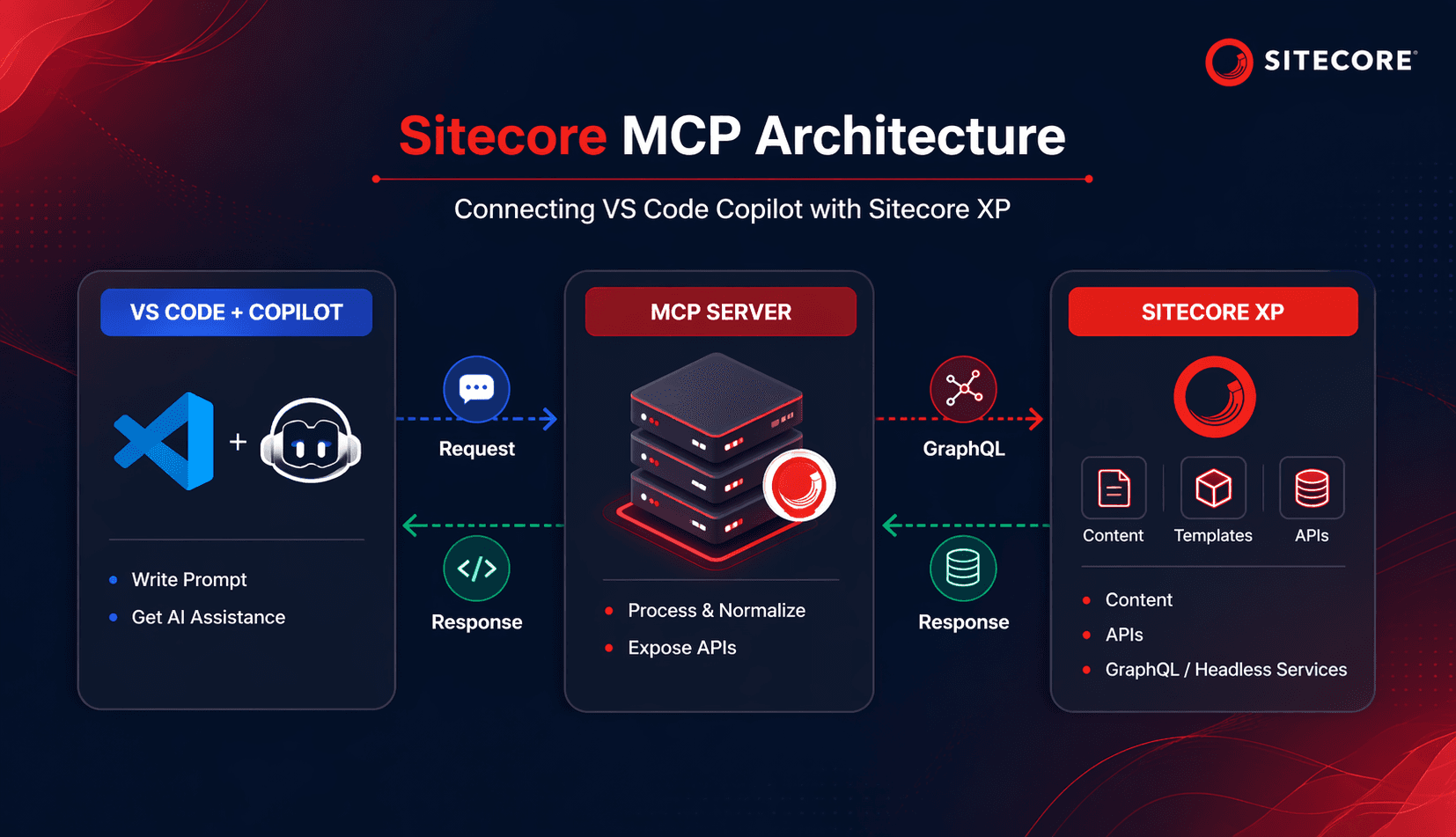
High-level Architecture Overview
At a high level, your setup looks like this:
The MCP server sits in the middle, translating Sitecore data into something AI tools can easily consume.
Design Principles (this is what makes it “Copilot-friendly”)
- Flatten Sitecore responses
- Expose intent-based endpoints (not raw APIs)
- Add developer-friendly metadata
- Generate types automatically
- Keep endpoints predictable and named well
Recommended Repo Structure
Prerequisites
Turn Your Sitecore Platform into an AI-Driven Development Engine
Before starting, make sure you have:
- Sitecore XP 9 or 10 running (CM/CD setup)
- Headless Services enabled (for GraphQL)
- Node.js (v16+ recommended)
- VS Code with GitHub Copilot installed
Step 1: Enable Sitecore APIs
You have two main options:
Option A: Sitecore Services Client (SSC)
- REST-based
- Quick to enable
- Less ideal for structured queries
Option B: GraphQL (Recommended)
- Install Sitecore Headless Services
- Use endpoints like:
- /sitecore/api/graph/edge
- Much better for AI use cases due to structured queries
Step 2: Create the MCP Server
Initialize your Node.js project:
mkdir sitecore-mcp
cd sitecore-mcp
npm init -y
npm install express axios
Step 3: Build a GraphQL Client
Create a reusable client to communicate with Sitecore:
// graphqlClient.js
const axios = require("axios");
class SitecoreClient {
  constructor({ endpoint, apiKey }) {
    this.endpoint = endpoint;
    this.apiKey = apiKey;
  }
  async query(query, variables = {}) {
    const res = await axios.post(
      this.endpoint,
      { query, variables },
      {
        headers: {
          "X-API-Key": this.apiKey
        }
      }
    );
    return res.data.data;
  }
}
module.exports = SitecoreClient;
Shape
Step 4: Normalize Sitecore Responses
Raw Sitecore responses are noisy. You need to simplify them.
// mapItem.js
function mapItem(item) {
  if (!item) return null;
  const fields = {};
  (item.fields || []).forEach(f => {
    fields[f.name.toLowerCase()] = f.value;
  });
  return {
    id: item.id,
    name: item.name,
    url: item.url?.path || "",
    template: item.template?.name,
    fields
  };
}
module.exports = { mapItem };
This step is critical—Copilot performs much better with clean, predictable JSON.
Step 5: Create MCP Endpoints
Now expose meaningful APIs:
// server.js
const express = require("express");
const SitecoreClient = require("./graphqlClient");
const { mapItem } = require("./mapItem");
const app = express();
app.use(express.json());
const client = new SitecoreClient({
  endpoint: process.env.GRAPHQL_ENDPOINT,
  apiKey: process.env.API_KEY
});
app.get("/content", async (req, res) => {
  const path = req.query.path;
  const query = `
    query GetItem($path: String!) {
      item(path: $path) {
        id
        name
        url { path }
        template { name }
        fields {
          name
          value
        }
      }
    }
  `;
  const data = await client.query(query, { path });
  res.json(mapItem(data.item));
});
app.listen(3000, () => {
  console.log("MCP server running on port 3000");
});
Step 6: Make It Copilot-Friendly
Avoid generic endpoints like:
GET /content?path=/home
Instead, design intent-driven APIs:
GET /page/home
GET /component/hero
GET /datasource/footer
This helps Copilot infer meaning and generate better code automatically.
Step 7: Use It in VS Code with Copilot
Once your MCP server is running:
You can write prompts like:
// fetch homepage data from MCP server
Copilot will generate:
const res = await fetch("http://localhost:3000/content?path=/home");
const data = await res.json();
Because your API is clean and predictable, the generated code is actually usable.
Step 8: Add Type Generation (Optional but Powerful)
You can generate TypeScript interfaces from Sitecore templates:
function generateType(template) {
  return `
    export interface ${template.name} {
      ${template.fields.map(f => `${f}: string;`).join("\n")}
    }
  `;
}
This gives you:
- Strong typing
- Better IntelliSense
- Improved Copilot suggestions
Step 9: Add AI-Aware Endpoints
To go further, add endpoints like:
- /summarize-page
- /search-content
- /generate-component-data
These act as higher-level abstractions on top of Sitecore content.
Step 10: Secure Your MCP Server
Do not expose your Sitecore instance directly.
Best practices:
- Use API keys
- Add rate limiting
- Restrict endpoints
- Avoid exposing CM publicly
Common Pitfalls
- Expecting native MCP support in Sitecore
- Using raw Sitecore API responses
- Skipping normalization
- Not using GraphQL
- Poor endpoint naming
Final Thoughts
Setting up an MCP server for Sitecore XP isn’t just about integration—it’s about shaping your content and APIs in a way that AI tools can understand.
Once done right, the benefits are significant:
- Faster development with Copilot
- Cleaner API contracts
- Better developer experience
- AI-assisted content and component workflows
This approach effectively modernizes how developers interact with Sitecore—bridging the gap between traditional CMS architecture and AI-driven development.
If you want to take this further, the next logical steps are:
- Converting this into a monorepo (Nx or Turborepo)
- Adding Docker for local environments
- Integrating semantic search or vector databases
- Supporting XM Cloud for a fully headless architecture
The MCP layer becomes your foundation for all of it.
Happy Conding !
Frequently Asked Questions
What is a Sitecore MCP server?
A Sitecore MCP server is a Model Context Protocol server that connects AI tools such as GitHub Copilot to Sitecore capabilities, allowing AI agents to query Sitecore content and perform supported actions using structured tools.
How does MCP work with Sitecore XP?
An MCP server can connect to Sitecore XP through available APIs such as GraphQL and Item Service, then expose selected Sitecore capabilities as tools that AI clients can call through natural-language requests.
Can GitHub Copilot connect to Sitecore XP?
Yes. GitHub Copilot Chat in a compatible IDE can use MCP servers to access external systems. A Sitecore MCP server can provide Copilot with controlled access to supported Sitecore XP data and tools.
What is the benefit of connecting Sitecore XP to GitHub Copilot?
The integration can reduce manual API calls and context switching by allowing developers to query Sitecore content and supported system capabilities directly through AI-assisted development workflows.
Does a Sitecore MCP server use GraphQL?
A Sitecore MCP server can use GraphQL to query Sitecore XP content and return structured data to AI tools. The exact APIs and schemas depend on the Sitecore environment and MCP server implementation.
What tools are required to set up a Sitecore MCP server?
A typical setup requires a supported Sitecore XP environment, access to relevant APIs such as GraphQL, Node.js or another MCP runtime, Visual Studio Code, and GitHub Copilot Chat.
How do you configure an MCP server in VS Code?
MCP server configuration can be added to an mcp.json file, commonly in the .vscode folder, where the server command, arguments, environment variables and connection details are defined.
What can developers ask Copilot after connecting a Sitecore MCP server?
Depending on the available MCP tools, developers can ask Copilot to retrieve Sitecore items, inspect content paths, list child items, review template fields, query structured content and support other development tasks.
Can MCP improve Sitecore AI development workflows?
Yes. MCP can provide AI tools with controlled, structured access to Sitecore context, helping AI-assisted development workflows use actual platform information instead of relying only on generic code context.
Is a Sitecore MCP server useful for enterprise development?
Yes. Enterprise teams can use MCP to create controlled connections between AI assistants and Sitecore systems, enabling more context-aware development, reusable tools, standardized access patterns and AI-ready workflows.