Integrate Builder.io into Your NEXT JS Web App for Advanced Functionality
In This Article
What is Builder.io?
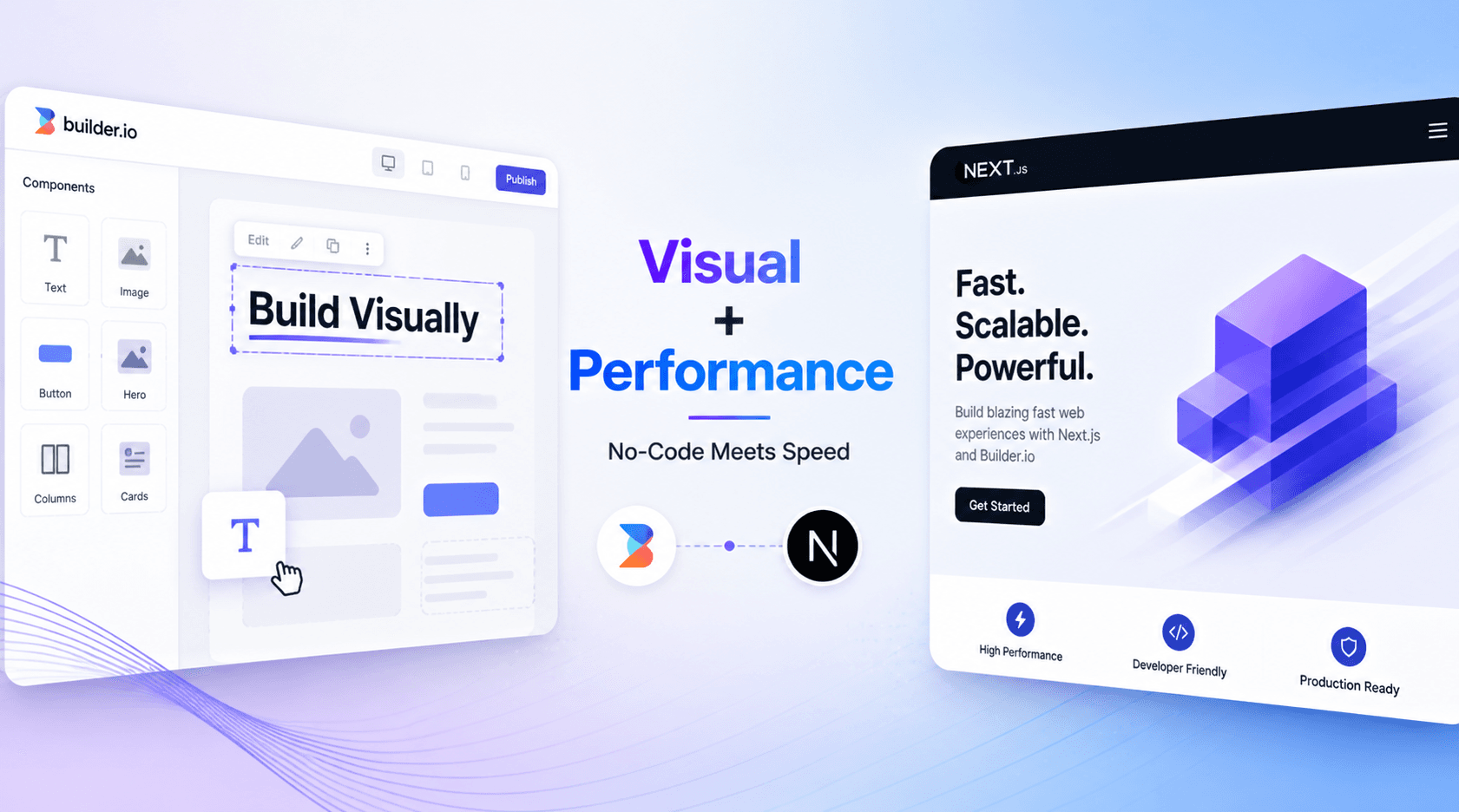
Builder.io is a user-friendly platform that lets you design and edit websites and digital content without needing to be a coding expert. It's like having a toolbox of website-building features that you can simply drag and drop onto your webpage.
With Builder.io, you can choose from ready-made templates and use a visual editor to easily create your web pages. Plus, it's easy to connect your website to other tools like online stores, marketing helpers, and data trackers, making it a versatile choice for all your digital needs.
To integrate Builder.io into your NEXT JS web app, follow these simple steps:
- Sign Up and Log In: Start by visiting the Builder.io website and creating an account. Once you're logged in, click on your username in the upper right corner.
- Get Your API Key: To obtain your Public API Key, navigate to your Account Settings for your Space within Builder.io.
- Copy Your Key: In the Account Settings section, you'll see your Public API Key. To use it, simply click on the copy icon next to the key.
Create NEXT web app
Combine Developer Power with Marketing Flexibility—All in One Platform
To create a Next.js app with TypeScript, you can follow these steps:
- Open your terminal and navigate to the directory where you want to create your project.
- Run the following command to create a new Next.js app with TypeScript:
- Create Your Next.js App: Now, run the following command to create a new Next.js app with TypeScript:
Once the installation is complete, go to the project directory:
After that run your project
Install and integrate Builder.io in web app
To install Builder.io in a Next.js app, you can follow these steps:
- Open your terminal and navigate to your Next.js project directory.
- Install the Builder.io React package using either npm :
Start the development server:
Modify your index.tsx as below
To create a home page in your Builder.io account space, you can follow these simplified steps:
Step 1: Navigate to the content section in your Builder.io account space.
Step 2: Look for a "New" button in the top-left corner of the list, and click it to create a new page.
This new page will serve as your home page within Builder.io. You can now proceed to design and customize it according to your preferences and content requirements.
provide the name and URL of the page you wish to set up or configure in your web application.
Here our page name is Home page and url is ‘/’.
You have the option to choose either a blank page or a template to display on your selected page.
start the server now, To view your homepage on your local server
Frequently Asked Questions
What is Integrate Builder.io into Your NEXT JS Web App for Advanced Functionality?
Discover how to integrate Builder.io into your Next.js web application to enable powerful drag-and-drop editing and real-time content management. This guide helps developers and marketers collaborate better, turning complex UI tasks into a visual, code-free experience. Start building smarter, faster, and more efficient