Step-by-Step Guide to Installing Sitecore 10.4.1 Locally

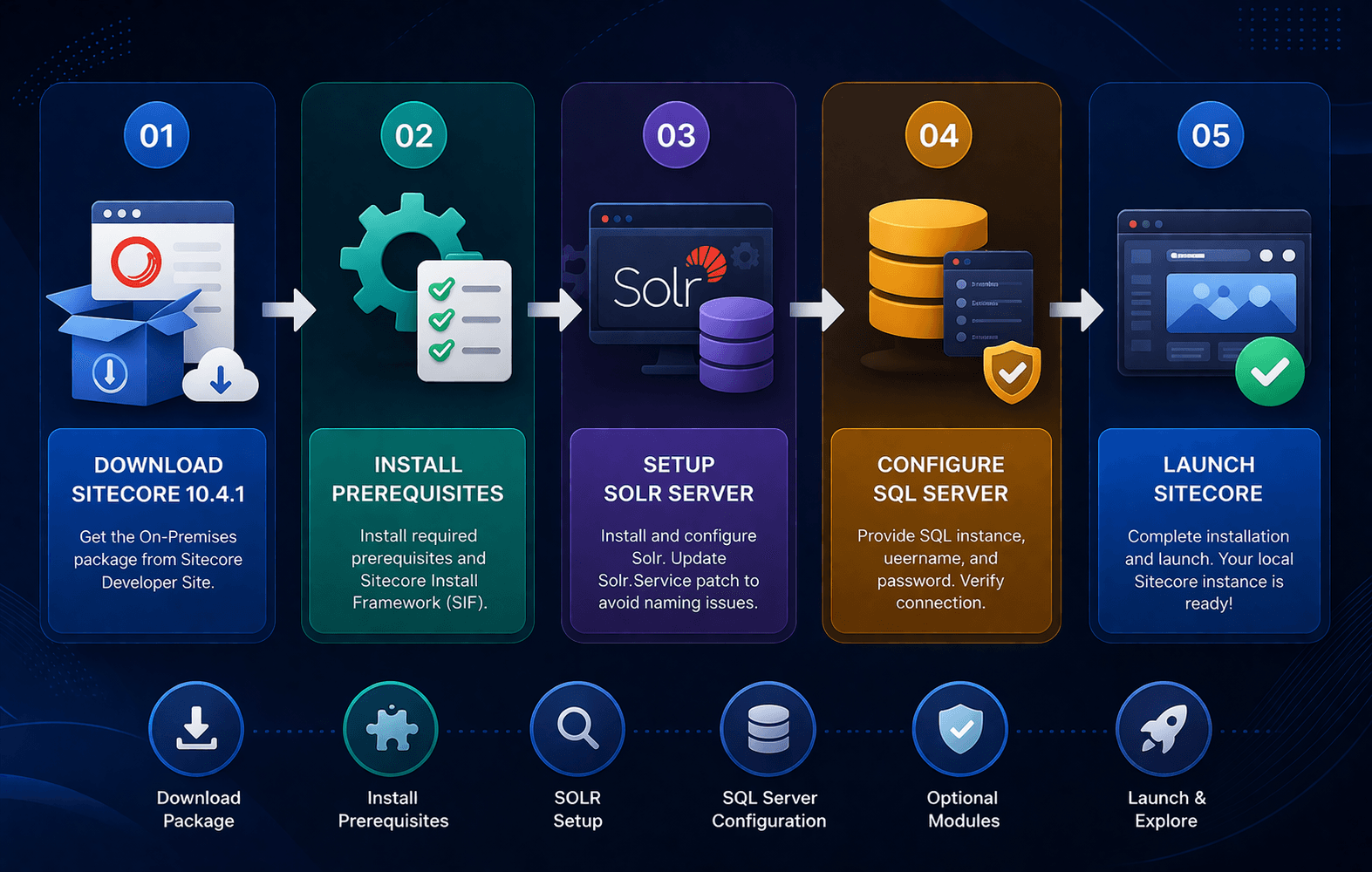
- Download correct package of sitecore 10.4.1 exe file from the sitecore developer site, and download from On Premises deployments. Download highlighted package for sitecore exe setup.

- Download correct package of sitecore 10.4.1 exe file from the sitecore developer site, and download from On Premises deployments. Download highlighted package for sitecore exe setup.

- Once you download package extract that file and click on the sitecore exe file to start your installation process.
- Note: Before you click on the setup.exe file, there is a minor change you need to undertake during the installation process of SOLR. In Sitecore 10.4.1 when you start installing SOLR, the solr file gets installed with multiple names in a single file, the prefix which you have provided and the file both come together as one file name. i.e. solr-9.8.1solr-9.8.1 to avoid such naming in the solr file we need to update "Solr.Service" patch as "Solr.Service": "[concat(variable('Sol.FileName'))]”, in Solr-SingleDeveloper.json file and saved it to avoid such cases.

- Now you can click on the setup.exe file.

- Download pre-requisites for sitecore.
but I encountered the following issue:

I saw that a lot of people have the same issue. To fix this you should install a new SIF through Powershell and use the next command:
Install-Module SitecoreInstallFramework -SkipPublisherCheck -Force
After installing a new SIF, need to re-run Sitecore installation. The issue should be going.


- Install Solr Server. This step should be done without any issues.


- Fillup the required details and attached sitecore certificate for next step.

- Fillup the SQL Server details with instance name, username and password.

- Check all the details for solr setting which we previously installed

- For optional module, if you are work on SAX part then you can check on the checkbox otherwise, we can skip this part and move ahead with installation part.

- Once the installation process is complete you will see the below screen, and then click on the launch button, you will see another screen on the browser side.


Your localhost screen will look like this as a plain vanilla instance.

you will encounter a new dashboard, styled reminiscent of XMCloud. Your CMS is look like this.

Thank You!